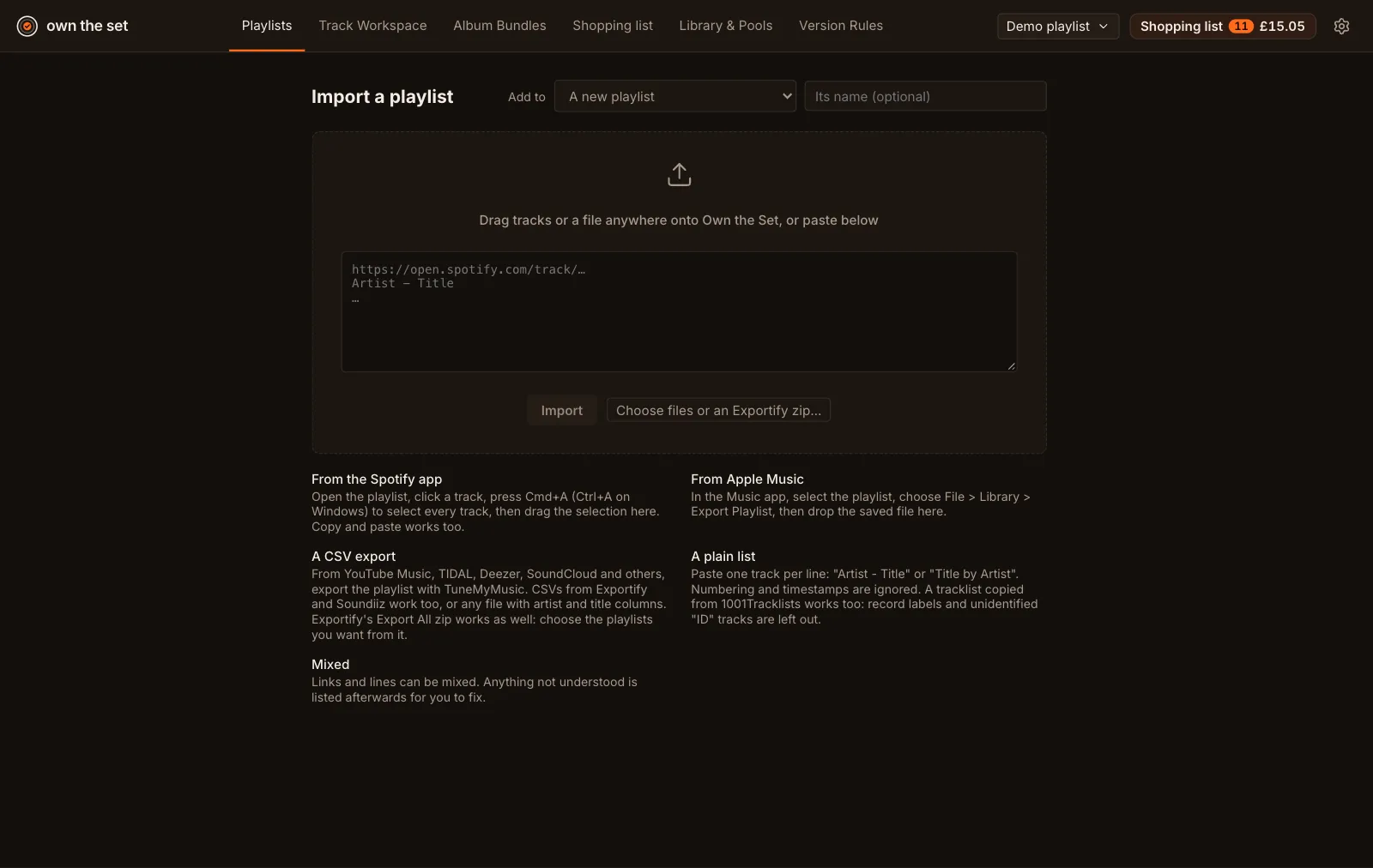
Bring in your playlists
Drag tracks out of Spotify, drop an Apple Music export, a CSV or an Exportify zip, or paste a tracklist.
- Spotify: select the tracks in the Spotify app and drag them onto Own the Set, or copy and paste them. No Spotify login.
- Apple Music: export the playlist from the Music app (File > Library > Export Playlist) and drop the file in.
- CSV files from Exportify, TuneMyMusic or Soundiiz, or any CSV with artist and title columns. TuneMyMusic covers YouTube Music, TIDAL, Deezer, SoundCloud and Amazon Music.
- Exportify’s Export All zip: every playlist in it waits in the app, sorted by when you last added to it, until you choose which to import. A newer export updates the playlists you’ve already imported, keeping your choices.
- A pasted list: one “Artist - Title” per line. Numbers, timestamps, record labels and unidentified “ID - ID” tracks are cleaned up, so a tracklist copied from 1001Tracklists works.
Tracks go into a new playlist or one you already have. Long playlists keep their newest 50 tracks, and you can change that.
A track repeated in a playlist is removed and the repeats are listed, so it’s only on your shopping list once.
Build a new playlist, or add to one, from tracks in your other playlists and uploads: a set, say, from the playlists you’ve been collecting.
How to get your playlist out of each service.